Hello.
We’re glad you’ve chosen a flexyPage display.
On this page, you’ll find short guides and tutorials that show you how to customize and configure your screen design.
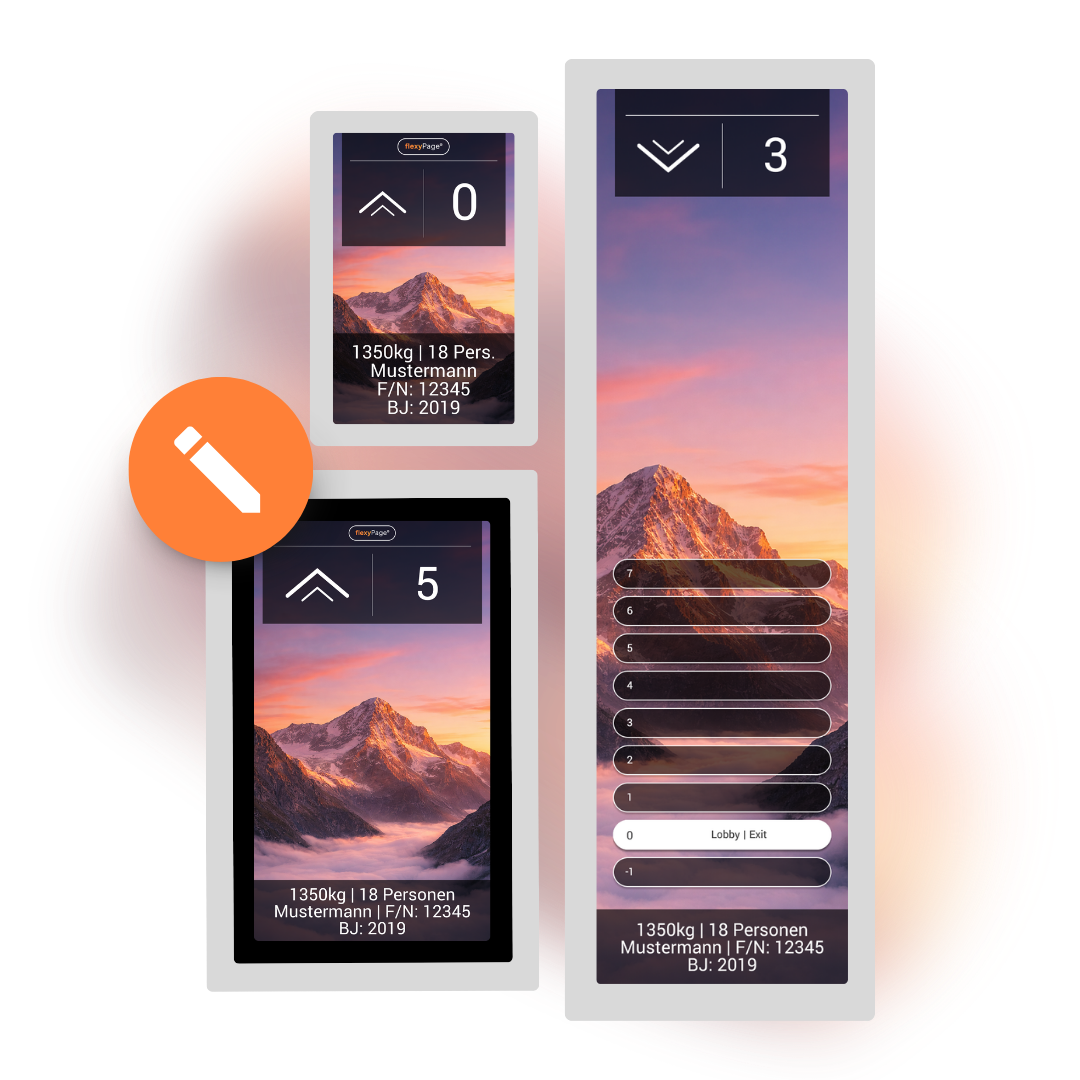

On this page, you’ll find short guides and tutorials that show you how to customize and configure your screen design.

Our flexyPage displays are designed to be easily and flexibly configured and customized via the web-based flexyPage Editor.
By default, our displays come with a predefined screen design and basic configuration. Here, you’ll learn step by step how to adapt these settings to your elevator system and your individual requirements.
Of course, these guides can also be applied to other display configurations.
Have you heard about our custom screen designs? Learn more about this premium package.
There are several ways to connect to the display.
You’ll find links to tutorials in this section.


Follow these steps to customize the floors in your display configuration:
Our NamePlate[text] widget has been specifically designed to ensure the correct display of elevator manufacturer information.
Click on the widget to open its settings panel on the right-hand side. If the widget is not yet part of your screen design, you can find it in the widget library under the Others submenu. Alternatively, you can use the TextArea[basic] widget, which is available in the Entertainment submenu.
In the Settings submenu, you can customize the text as needed.
If Screen Size is set to “0”, the font size is automatically adjusted so that the characters in the manufacturer information are 1 cm tall.
Once you’ve finished making your changes, click Save.

Watch our tutorials and technical documenta or contact us:
Support: +49 221 64308163 | support@elfin.de
Sales: +49 221 677 89 320 | sales@elfin.de

Follow these steps to adjust the Node ID and baud rate in your display configuration:
Go to the CAN Settings menu (second menu from the bottom).
Open the Lift Settings submenu.
Here, you can adjust the Node ID and baud rate.
Important: Make sure that simulation mode is disabled.
Once you’ve finished making your changes, click Save in the bottom-right corner.
Follow these steps to configure the Call Controller:
Go to the CAN Settings menu (second menu from the bottom).
Open the Call Controller submenu.
Depending on your configuration, the Call Controller may still be disabled. To enable it, check the boxes for “CANopen Master” and “External CANopen Inputs/Outputs”.
Once both options are enabled, you can configure the individual I/Os by clicking on the corresponding entries and adjusting their settings.
Important: Make sure that simulation mode is disabled on your display. To do this, go to CAN Settings → Elevator Settings and disable simulation mode.
Once you’ve finished making your changes, click Save in the bottom-right corner.

In addition to our standard package, we also offer a premium package.
With this package, we create a custom screen design tailored to
your specific requirements, use case, and corporate design.

Choose from a selection of predefined designs that are ready to use in just a few clicks.
Our standard designs are free of charge and already available in the web-based editor.

Our full-service package covers every step, from the initial consultation to the finished screen design. We work closely with you to create a custom design tailored to your specific needs and use case.

ELFIN Technology GmbH
Im Zollhafen 22
50678 Cologne, Germany
Tel.: +49 221 6778932-0
Fax: +49 221 6778932-2
service@elfin.de