Technical Information
Here you will find all technical information and assistance for setting up flexyPage products.
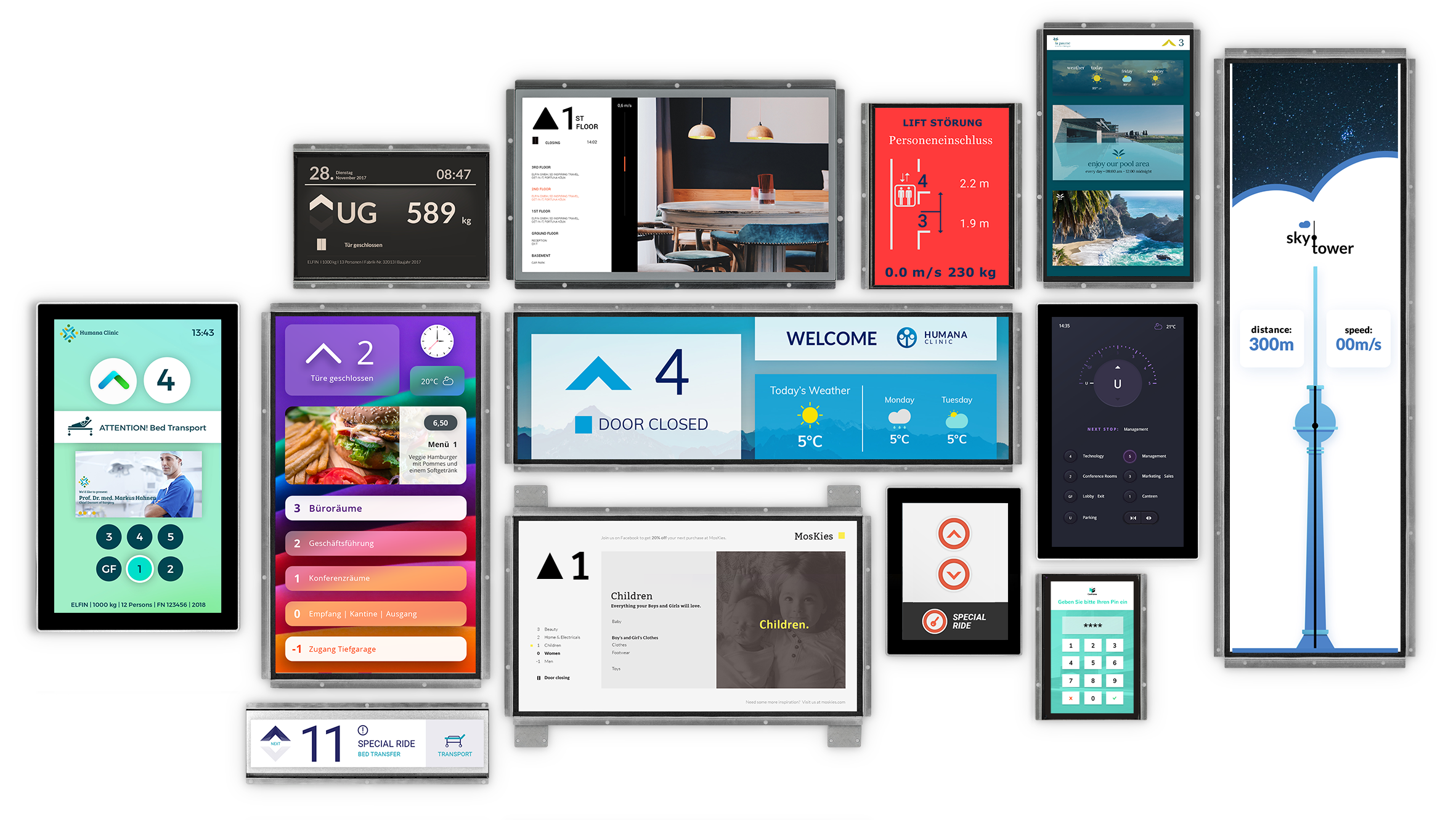

Here you will find all technical information and assistance for setting up flexyPage products.

flexyPage Displays

flexyPage Messenger

flexyPage Campaign

Positionsabhängige Videos in Aufzügen

Protokollbeschreibung für Steuerung & Monitoring von Plugins

Aufschaltung in der Notrufzentrale

flexyPage Campaign – Protokollbeschreibung (Auszug)

Standard Klemmenbelegung

CAN-IO Board 16 I/O

Speaker 30W 8Ω

Plug-in power supply 230 VAC / 24 VDC – 5,0 A
Check out our tutorials and various guides, or contact us::
Support: +49 221 64308163 | support@elfin.de
Vetrieb: +49 221 677 89 320 | sales@elfin.de
All flexyPage displays support the open standard CANopen-Lift. If the lift control supports the standard as well, the installation and setup is simple. This is due to the plug and play abilities of the standard. In this case the complete information of the lift is available to the display. If the lift possesses an old discrete control system or a proprietary bus system the flexyPage displays can be used as well. In this case the necessary signals can be provided with the help of an I/O module. Additionally, sensors can be connected to the display that enable supplement functions, which are usually limited to modern lifts with CANopen controllers.
With CANopen
The connection to a lift with the CANopen-Lift standard is very easy. Nonetheless the installation has to be made by a specialist, who is familiar with the security requirements for the work at electric constructions of lifts.
Every flexyPage display comes with a CAN bus interface. The interface terminals have to be connected with the bus of the construction using only two twisted wires. The standard sets the wire colors of white for CAN H and blue for CAN L. Next, the termination of the CAN bus has to be checked and possibly adjusted.
After the login into the user interface of the flexyPage display the NodeID and the baud rate have to be set up. Now all messages on the bus of the lift are available for the display as well. You can now use the widgets you need for your application.
Without CANopen
For lifts that do not support CANopen-Lift the necessary signals can be provided by an external I/O module. The I/O module can be integrated directly at the signals’ origin, for example, in the cabinet of the control or in the terminal. For data connection to the display only 2 twisted wires are necessary. The I/O modules are available from different manufacturers freely on the market.

Additional Shaft Installation
If, in the course of modernisation, LED displays on the floors are to be retrofitted, the whole shaft installation can occur via a CANopen installation controlled by a flexyPage display. This way the wiring in the shaft necessitates only two twisted wires and besides the exterior calls it is possible to output floor status, run direction, departing arrows, floor bell and special texts.

Additional Sensors
If additional sensors are needed, which cannot be provided by the existing control, the necessary sensors can be connected directly to the CAN bus. This way, it is possible to show, for example, the current weight or the position and speed in the lift car.

For the mounting of the flexyPage displays, there are different options to mount the display as safe and easy as possible depending on the local conditions. For special requests or special projects, please feel free to contact us at any time to find a suitable solution for you.
Rear Wall Mounting with Welding Studs
On this picture you will see the option “Rear mounting with welding studs”. The display is mounted from behind in an indicator board or panel so that it is flush with the front. The cutout for the stepped glass panes must be lasered very precisely. The display is screwed with nuts to welding studs, which are attached from the back of the indicator board or panel. A stepped glass pane is inserted between display and front of indicator board or panel. It protects the display and creates a flush surface with the indicator board or panel. This solution is suitable for new construction and modernization with retrofitting of a new indicator board.

Front Mounting by Stainless Steel Frame with Screws
With the option “front mounting by stainless steel frame with screws”, the display with the stepped glass pane is mounted from behind in a stainless steel frame. A cutout is made in the indicator board or panel and the frame is inserted with the display. The frame is then fastened to the indicator board or panel with screws and then protrudes approx. 2 mm. This option is particularly suitable for retrofitting or as part of a modernization and for installation in the floors.
The stainless steel frame is available as an optional accessory.

Front Mounting by Stainless Steel Frame with Welding Studs
With the option “Front mounting with stainless steel frame with welding studs”, the display is fastened with the stepped glass pane from behind in a stainless steel frame. There are cutouts in indicator board or panel for display and welding studs for fastening the stainless frame with display and stepped glass pane. The stainless steel frame is fastened with nuts from the back to the indicator board or panel. It protrudes about 2 mm into the cabin. This option is particularly suitable for retrofitting or as part of a modernization and for installation in the floors.
The stainless steel frame is available as an optional accessory.

Mounting Behind Glass
With the “mounting behind glass” option, the display is bolted to welded studs with nuts, which are located on the back of a stainless steel frame. This stainless steel frame is attached to a glass pane. Except for the active area of the display, the glass panes are laminated or tinted.

There are several ways to access the configuration interface of the flexyPage displays. Here you can find some examples:
Traveling Cable

Local Access (WIFI)

Local Access (Ethernet)

LTE Modem

Traveling Cable + WIFI for local Access

Connection to Router/LAN via WIFI

Often, in a project, several displays have to work as a group. In this case, it is important that the displays can be linked together and the information of the sensors and of the building can be shared among all displays.
LAN
The flexyPage displays are always equipped with a LAN-port. Via this port the configuration of the displays, as well as the connection to the internet and to the building automation is realised. In the displays, equipped with the display controller fel1A (starting at 10,1″), there are two 10/100 Mbit LAN-ports, which are coupled via an internal switch. This way, many displays can be connected as a chain very easily without the necessity of any further active external network components (switch/hub). This saves enormous costs in planning and realization of connected display systems.
CAN
Furthermore, the flexyPage displays include a CANopen-interface to connect to lifts, to query sensors and to communicate with each other.
If the displays are deployed in a lift that already supports the CANopen standard, complete information about the lift is available without extensive wiring. But even in older lifts this port offers many advantages. Here all displays can be connected to the bus wire very easily and the connection to the control can occur via a single I/O module for all signals. It is even possible to use the market-common sensors independently from the control.
With the CAN bus it is possible to transmit real-time-capable messages. This makes it ideally suited to synchronize various processes in various displays, for example, for the reproduction of multimedia data on several displays.
Gateway
We implented a CAN / LAN gateway into the flexyPage displays and can therefore tunnel the data from CAN networks through an intranet or the internet.
This simplifies the mounting. In many situations it is possible to use existing installations and less cable has to be wired. The detailed distance diagnosis up to the field bus level or the connection to other elements of the building automation is easily possible as well.

By clicking the links you will visit www.youtube.com. This website has its own data protection regulation.
The EC declaration of conformity for our products can be found here:


ELFIN Technology GmbH
Im Zollhafen 22
50678 Cologne, Germany
Tel.: +49 221 6778932-0
Fax: +49 221 6778932-2
service@elfin.de